
This description shows an example of creating a user role that is granted rights for SOAP queries of raw data and linking a person to this role for the Rostock WEA 01 plant.
⚠ Note: You need administration rights to edit this.
1. Create a Role
To use the SOAP interface, you need a role that has SOAP rights. We recommend creating a separate role for this purpose.
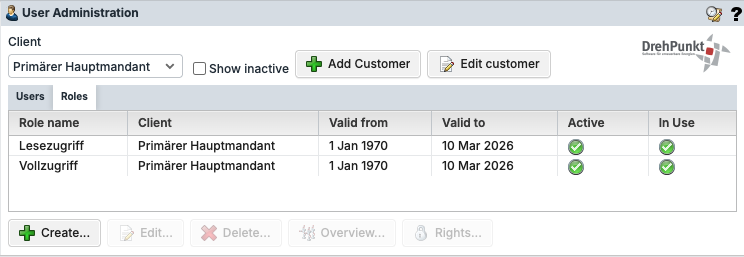
In rotorsoft, go to Administration > rotorsoft > User management and switch to the Roles view.
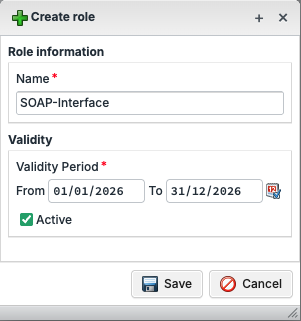
Open the Create dialogue box and enter a name and the validity period. Ensure that the role is active.
2. Assign Rights
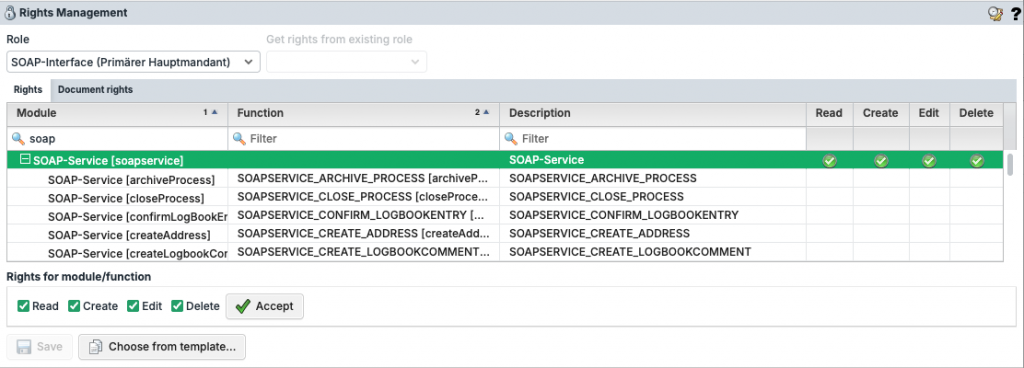
Switch to the Administration > rotorsoft > Rights Management view.
Select the role you just created at the top.
Activate the rights for reading, creating, editing and deleting for the SOAP-Service [soapservice].
3. Link Persons to the Role
Go to Administration > rotorsoft > User Management.
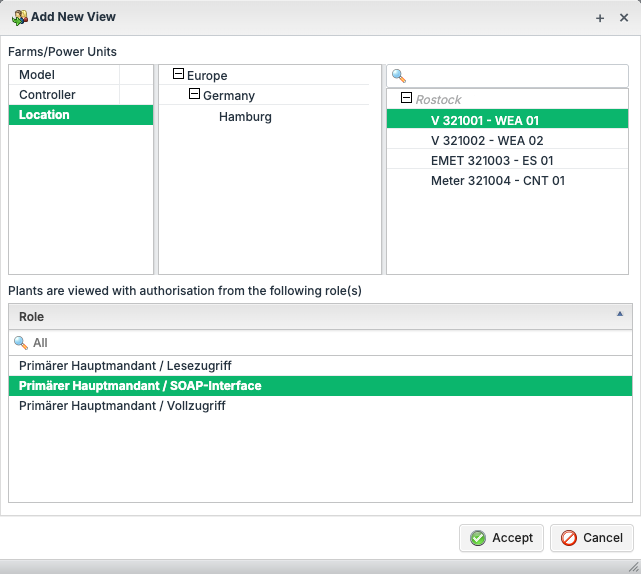
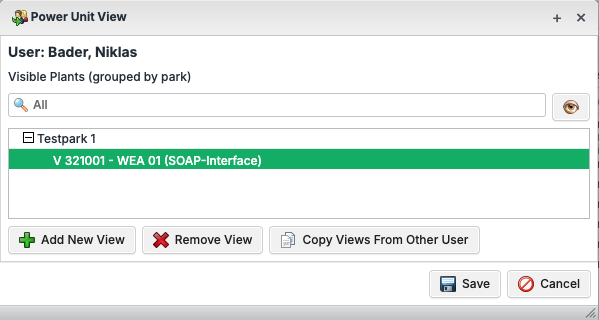
In the table, select the user who is to receive SOAP rights and select Power Unit Views.
A power unit view is the assignment of users to roles in connection with plants. In this case, create a power unit view for the selected user with the SOAP interface role created above and the Rostock/WEA 01 plant.
Tip: If you have linked a user to this power unit view, you can link additional users. In user management, select the user who should receive the power unit view. Use power unit views. Select the power unit view and use Copy Views From Other User.
4. Check Licences
Check the assigned licences under Administration > rotorsoft > Licences and, if necessary, assign the required licence with the plants that are to be queried.
The SOAP extended licence is required to use the SOAP interface.
The SOAP commercial licence is required to connect the SOAP interface of rotorsoft to a third-party system.
Setup in opti.node
We have created a quick guide for opti.node to show you which settings need to be made in opti.node.